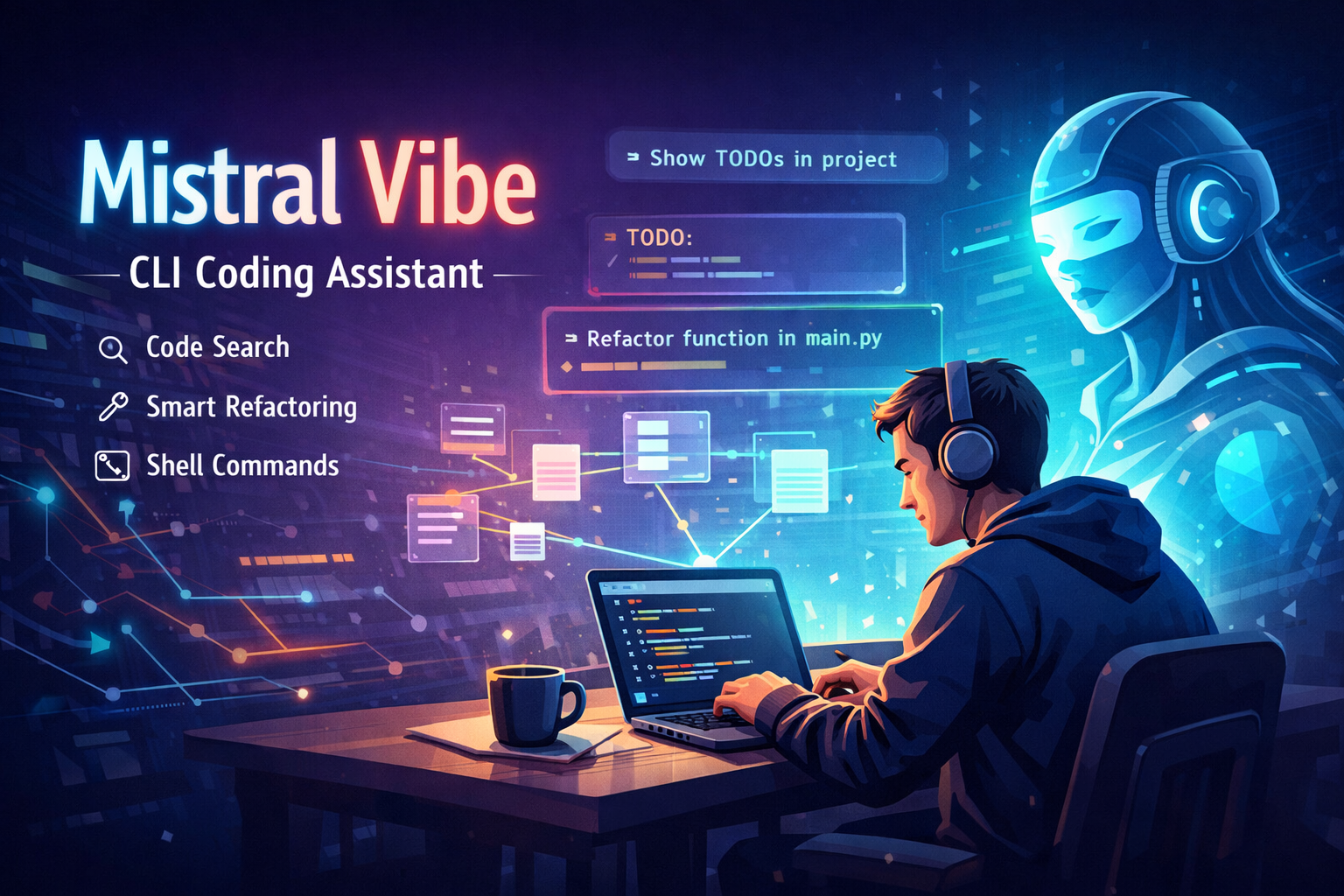
Mistral Vibe is an open-source CLI tool built in Python that you can install locally, then run inside any project directory. It uses large language models (LLMs) to interact with your files, run shell commands, search code, and even keep context about your entire repo structure.
Why This Matters
Instead of copy-pasting code into a web UI, Vibe keeps you in your terminal. You can ask things like:
“Show all TODOs in this project.”
“Refactor the function in
main.py
to be more modular.”
and it will respond with actions or suggestions.
Step 1 — Clone the Repo
git clone https://github.com/ankush-kaura/mistral-vibe.git cd mistral-vibe
Now you have the entire source tree on your machine. Inside you’ll see a standard Python project structure, with:
vibe/ — core CLI implementation
pyproject.toml — project config & deps
.github/ and config files
README with quickstart info
Step 2 — Environment Setup
Mistral Vibe is a Python project, so you’ll want a clean environment.
If you use pyenv + venv:
pyenv install 3.12.0 pyenv virtualenv 3.12.0 vibe-env pyenv local vibe-env python -m venv .venv source .venv/bin/activate
Then install the dependencies:
pip install -U pip pip install -e .
-e . means install in “editable” mode — great for development and tweaking the code. This mirrors the official install instructions from the original project.
Step 3 — Configure Your API Key
Vibe needs an API key to talk to the model provider (Mistral’s API or another compatible LLM backend). On first run it will prompt you interactively and save your key in a config folder:
vibe
By default, it stores config at:
~/.vibe/config.toml ~/.vibe/.env
You can also set it manually:
export MISTRAL_API_KEY="your_api_key_here"
Step 4 — Run Vibe
Once installed and configured:
cd path/to/your/project vibe
You’ll see a CLI prompt. You can ask natural language questions, like:
> Show all TODO comments
Behind the scenes, Vibe uses tools like:
grep for code search
file tools to read/write/patch
a bash wrapper for shell
todo engines to track work
You can also reference files with @ for smart autocompletion and run shell commands directly with !
Step 5 — Advanced Usage
Interactive Context
Vibe scans your entire repo and tracks Git status, so your natural language queries are rich and aware of context.
So instead of guessing which file you mean, it understands structure:
> Refactor function in @src/app.py
Programmatic Mode
You can use vibe without entering the interactive shell, e.g.:
vibe --prompt "Generate tests for module X"
This helps when scripting or automating workflows.
Bonus — Customize Prompts & Tools
You can customize prompts and tools by editing:
~/.vibe/prompts/ — custom system prompts
~/.vibe/agents/ — custom agent configs
You can even enable or disable tools like write_file, bash, etc., per agent config.
Tips / Roadblocks
Vibe is officially targeted at UNIX-like environments (Linux/macOS), though Windows works with extra steps.
If you plan to use models locally (like GPT-OSS or Devstral Small), make sure your backend supports the provider configuration in config.toml. Some users configure local llama-cpp endpoints via config overrides.
Wrap-Up
Mistral Vibe turns your terminal into an AI-augmented dev assistant that knows your repo, runs searches, applies edits, and even executes code via shell. Set it up once, then you literally talk to your codebase.